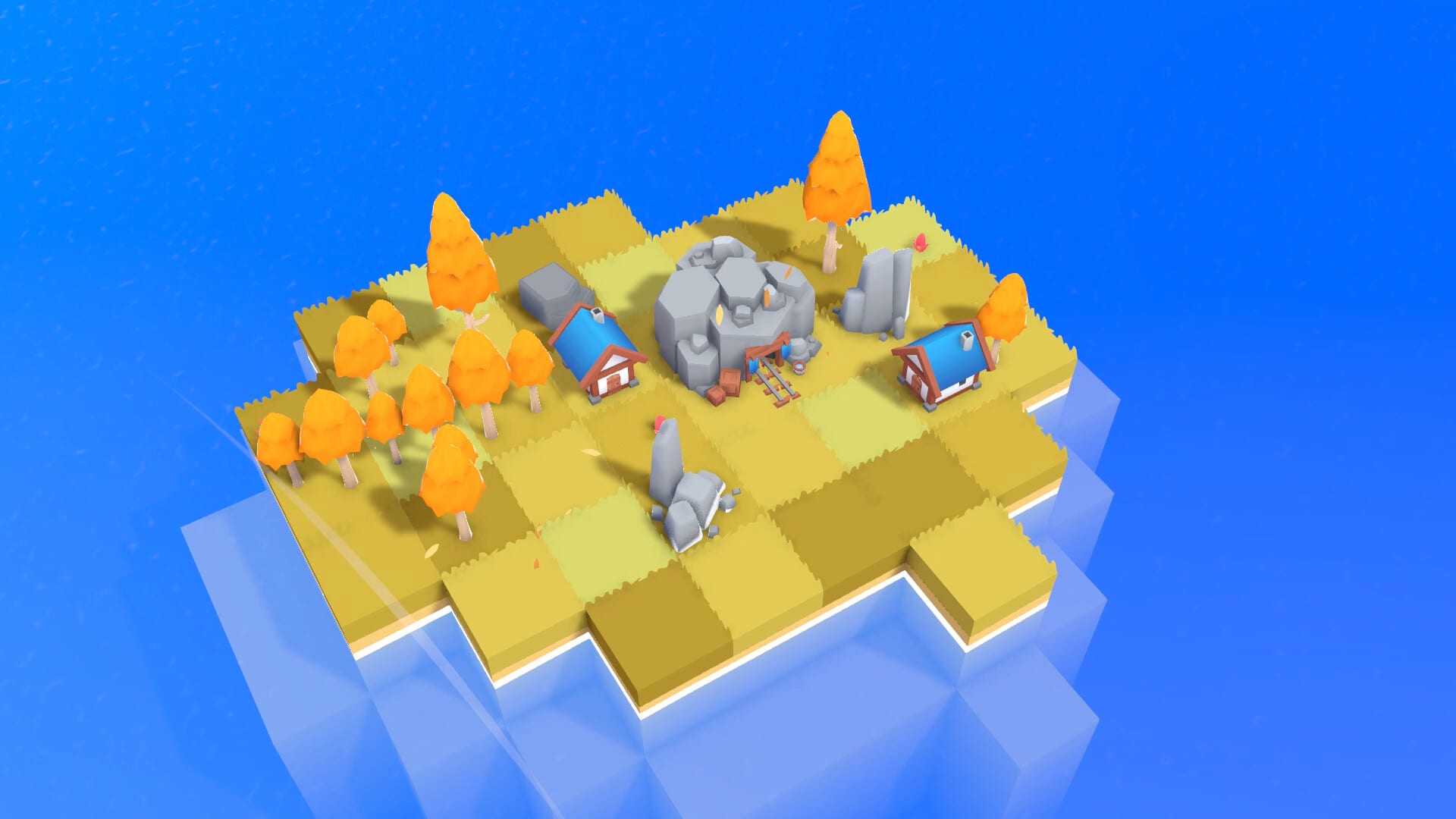
Farewells clicker Controls and Settings
See more on hover, then fix the display.
Farewells Clicker is easy to move around and easy to misread. Demo players asked for better range previews, more complete tooltips, a resolution option, and a volume slider that did not jump to 100%. Team Square answered a lot of that in patch 0.6.0, 0.6.2, and 1.0. This page is the controls and settings guide. Use it once, then go back to How to Play.
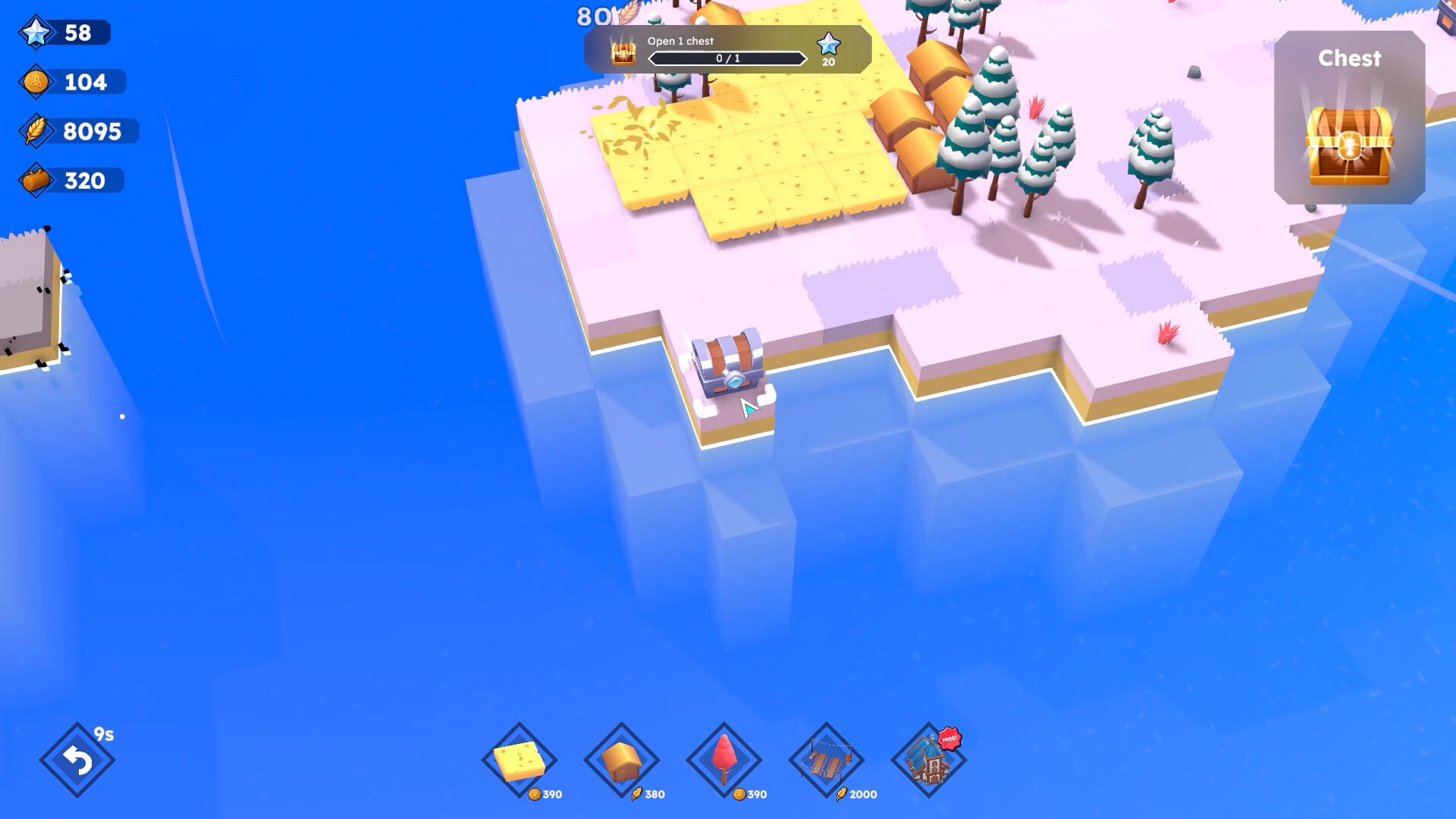
Steam lists custom volume controls, stereo sound, save anytime, and playable without timed input. Those store tags match the design: you can pause, you can mute, and you are not forced to click on a beat except during Whack-A-Mole. See chest events for that exception.
Detailed mode (the setting that teaches the game)
Patch 0.6.0 added Detailed mode. Press Left Alt or use the toggle in the bottom-left corner. Hovering a building then shows more than the short income line. Demo feedback specifically wanted a tooltip that listed relevant upgrades, not only base income, and a clearer range when a building was already placed. Detailed mode is the official answer.
Turn it on when you:
- Place a quarry and want to see whether nearby rocks count.
- Compare a Watch tower to a star-granting Tower.
- Check a Guild Hall click radius before you commit the tile.
- Learn a 1.0 building such as Manor, Castle, or Portal for the first time.
Leave it on for the first two hours. The extra text is the wiki you already paid for.
Camera and view
1.0 added inverted camera control. If drag-to-pan feels backwards, toggle invert in settings instead of fighting it. The same patch added a dark transition you can enable between the island view and the tech-tree view. Use whichever transition is easier on your eyes. Neither option changes production.
Zoom out before Whack-A-Mole. Zoom in before you place a Cottage so you can see the fields it tries to plant. There is no public official keybind list beyond Left Alt for Detailed mode. If a control is rebindable in your build, prefer the in-game settings screen over a wiki guess.
Display mode, resolution, ultrawide
The February 2026 demo discussion included a 5120x1440 player who wanted 2560x1440 and had no resolution setting. The recap window also looked wrong, possibly because of the resolution. Patch 0.6.0 added a display mode dropdown and a resolution dropdown, and it fixed UI that did not display correctly on ultrawide monitors. Patch 0.6.2 fixed more ultrawide UI cases.
If you play 1.0 on an ultrawide panel:
- Open settings and pick a 16:9 or 21:9 resolution you actually want, not the desktop native if that stretches UI.
- Switch display mode (fullscreen / borderless / window) if the dropdowns are clipped.
- If the farewell recap still looks broken, remember 0.6.2 also patched recap layout after Storm. A leftover bug should be reported, not “fixed” by farewelling again.
Language
0.6.0 added a language dropdown and listed homemade translations for English, French, German, Spanish, Portuguese, Italian, Polish, Russian, Korean, Japanese, and Simplified Chinese. Team Square said the translations might not be perfect and they would watch for community corrections. 1.0 mentions further localization fixes.
This wiki is written in English, French, German, and Spanish. If a building name in your client does not match the English term used here (Watch tower versus Tower, Tempest versus Storm), trust the tooltip and Detailed mode. The building list uses the English names from the official notes.
Audio
A demo player reported that the volume gauge jumped to 100% no matter where they clicked, and they muted the Windows application instead. Steam now lists custom volume controls as a feature. If the in-game slider still misbehaves in your 1.0 copy, use the OS mixer as a backup and send a report. Do not assume music and SFX share one bus until the UI says they do.
Accessibility and comfort
- Auto-click was buffed in 0.6.0 so you can lean idle.
- Guild Hall clicks around itself if you want a building to do the mashing.
- Timed input is not required for the campaign.
- Save anytime and Steam Cloud are on the store page.
- Family Sharing is listed, so another account on the same Steam family can play the license.
If clicking is the only thing making the game unfun, you are allowed to play it as a city builder. Place halls, take idle nodes, and read Early Skill Nodes for the non-click path.
Escape menu and quality-of-life leftovers
0.6.2 added a wishlist button in the escape menu during the demo period. 1.0 is a paid launch, so treat store buttons in menus as optional. The useful escape-menu habit is to confirm you saved before you alt-tab. Steam Cloud should sync, but a local save before a long break is still the calm choice.
Related pages
Use How to Play for the loop these settings support. Use How to Expand Your Island when you are panning a large border. Use How to Farewell if the recap window is the screen you are trying to read. Official requirements for Windows and macOS are summarized on the Links Hub.
Frequently Asked Questions
Quick answers to the most common Farewells Clicker questions.
How do I turn on Detailed mode?
Hold Left Alt or use the toggle in the bottom-left corner. Patch 0.6.0 added both.
Is there a resolution setting now?
Yes. Patch 0.6.0 added resolution and display-mode dropdowns after the demo launched without them.
Can I invert the camera?
Yes. Patch 1.0 added inverted camera controls and a light/dark transition between island and tech-tree views.
Why do some names differ between languages?
Team Square shipped homemade translations and asked for corrections. When in doubt, compare the English tooltip in Detailed mode.
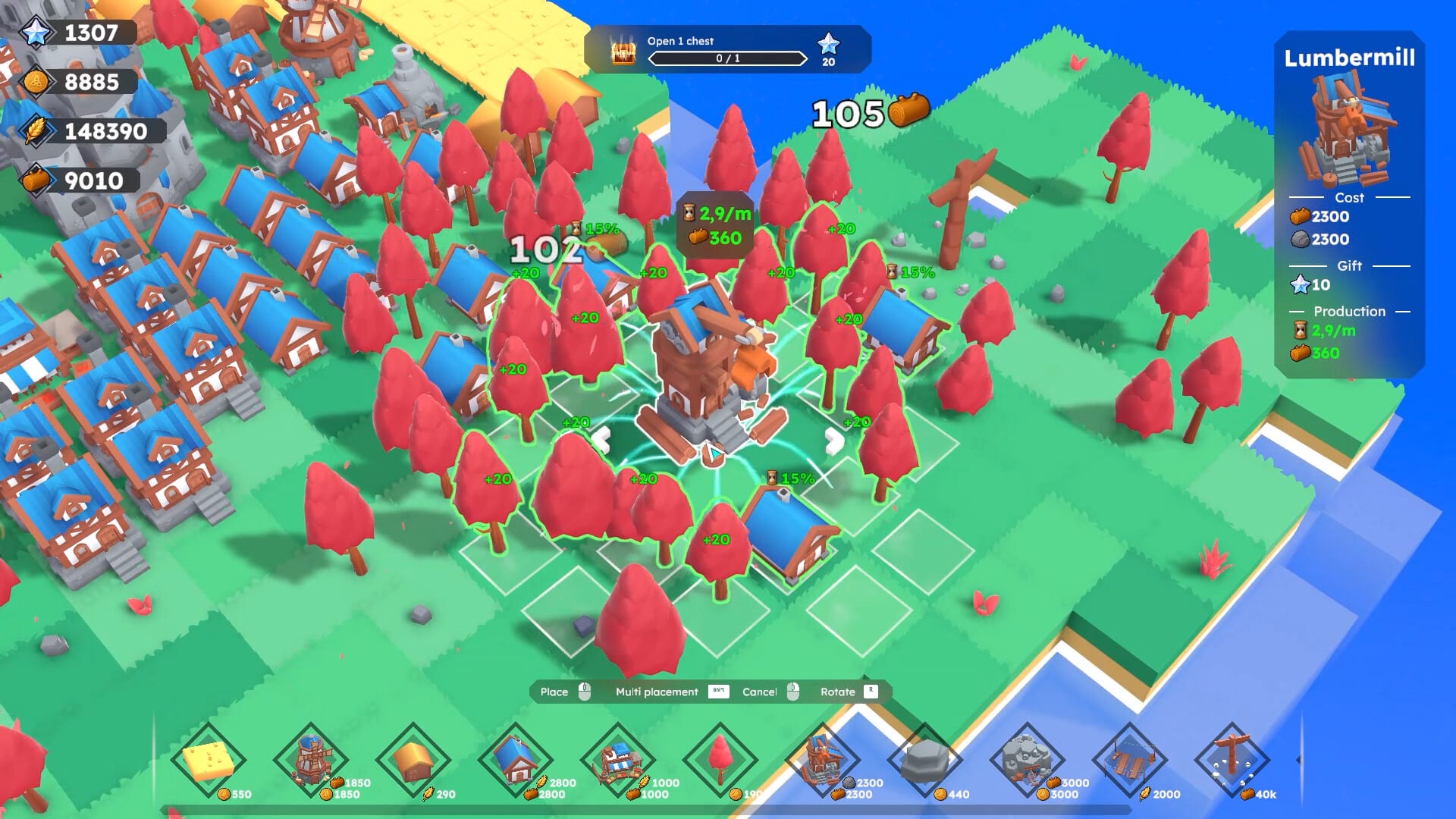
Guides Overview
Farewells Clicker guides for how to play, expand land, farewell, chest events, controls, and a launch-week review.
How to Play
Learn Farewells Clicker from the first click: claim tiles, place producers, use auto-click, and finish the opening quests.
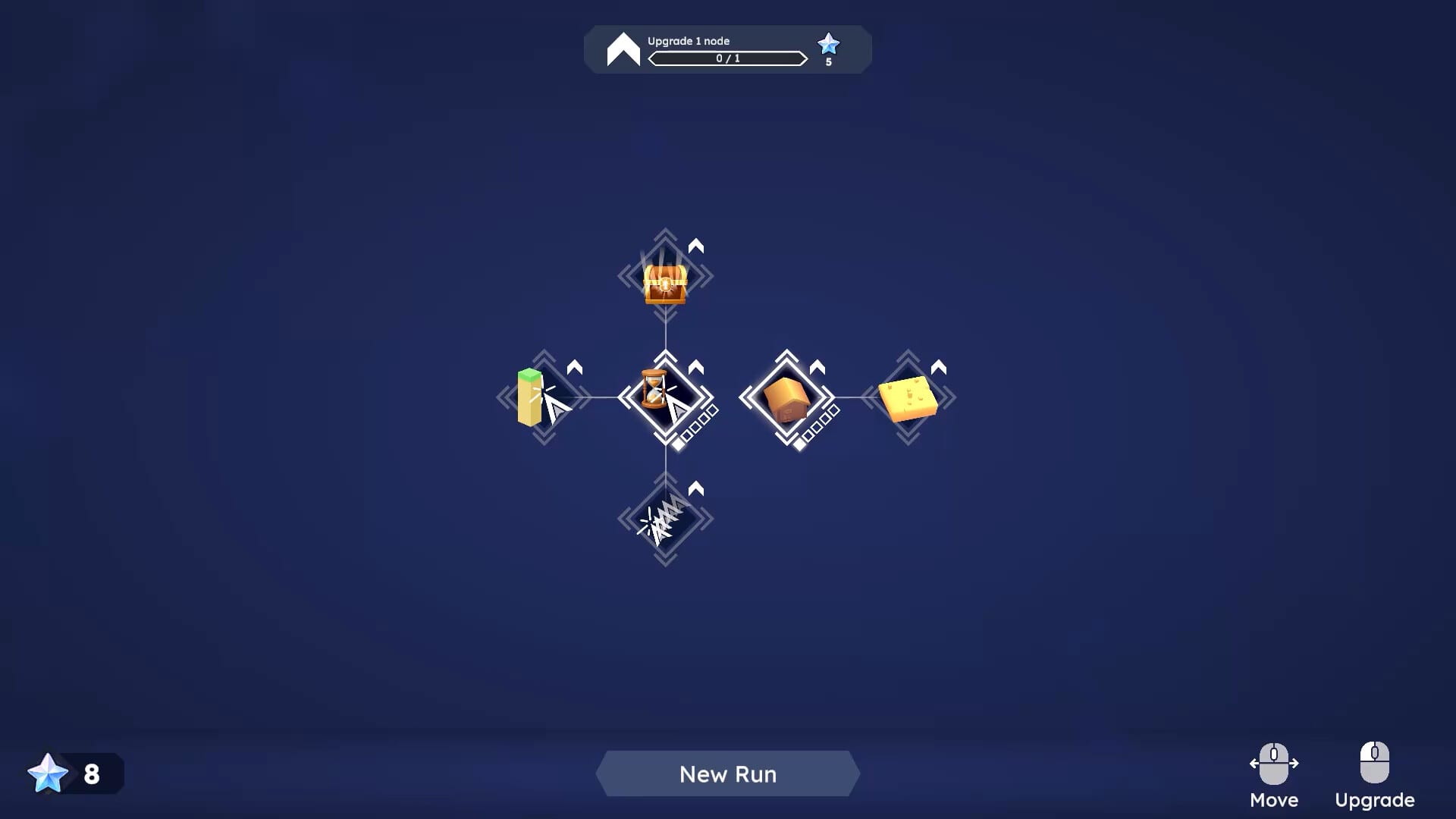
Expand Island
Expand a Farewells Clicker island with Watch towers, Multi Claim, and smarter borders instead of empty claimed grass.
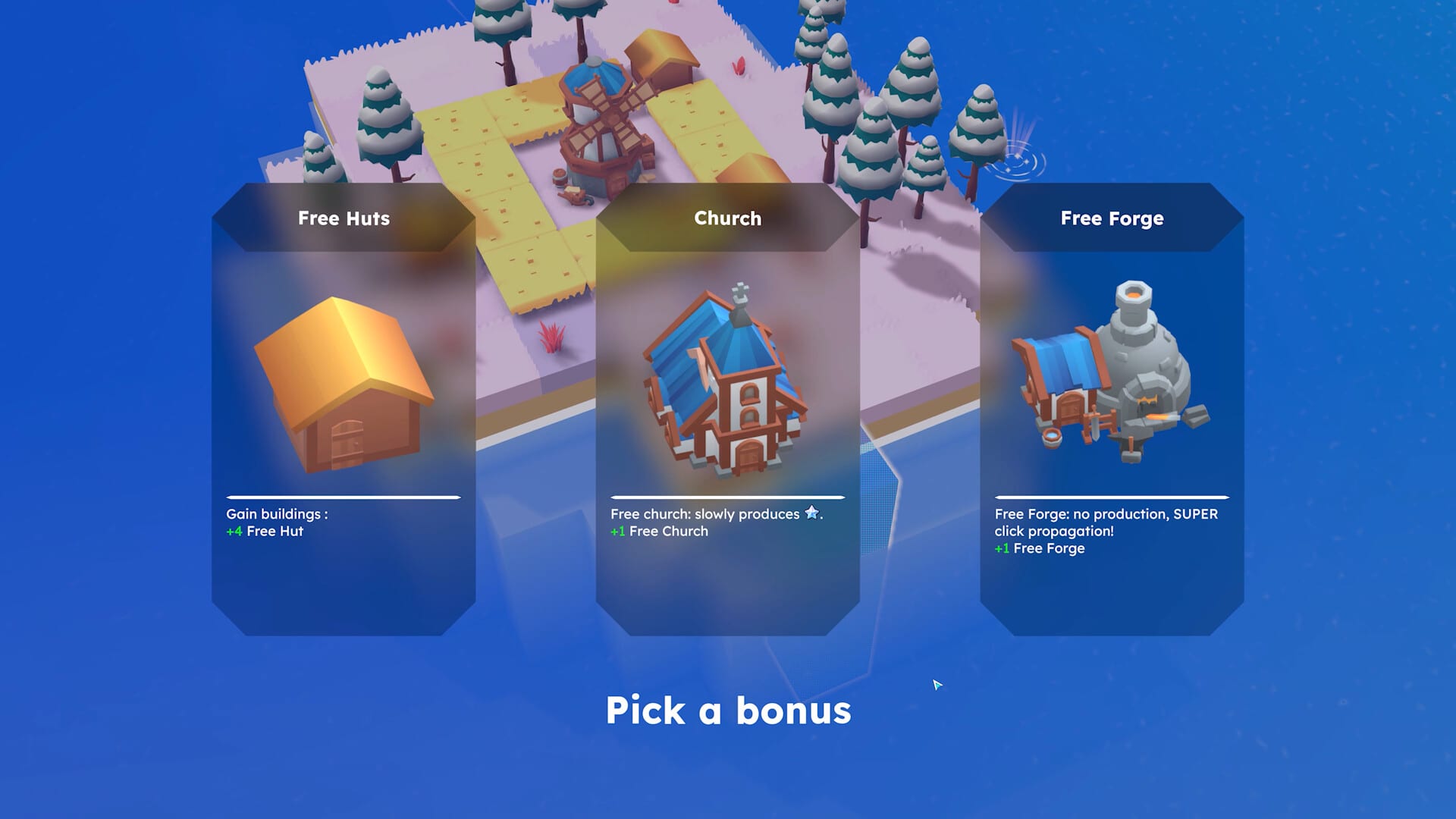
How to Farewell
Learn when a Farewells Clicker farewell reset is worth it, what the recap shows, and when Creative Mode is safer.
Chest Events
Chest events in Farewells Clicker: Whack-A-Mole, Tempest, and Cloning, plus when Chest Discovery is safe to unlock.
Review
Farewells Clicker review of the 1.0 Steam launch: demo versus full game, who it is for, and what still needs a patch.